Shopify Sub-Collections: How to Nest Categories Properly

Shopify Sub-Collections: How to Nest Categories Properly
Shopify won't nest collections. Use tags plus automated collections for under 500 SKUs, curated links or a Collection list section up to a few thousand, and a dedicated app beyond that. Watch your URLs, duplicate content, and canonicals either way.
If you're picturing a Shirts collection that lives under a Men's Clothing collection the way folders nest inside folders, that structure doesn't exist natively. What you can do is fake it convincingly, using four different methods, and each one comes with a real tradeoff you need to know before you build your catalog around it.
Does Shopify support sub-collections?
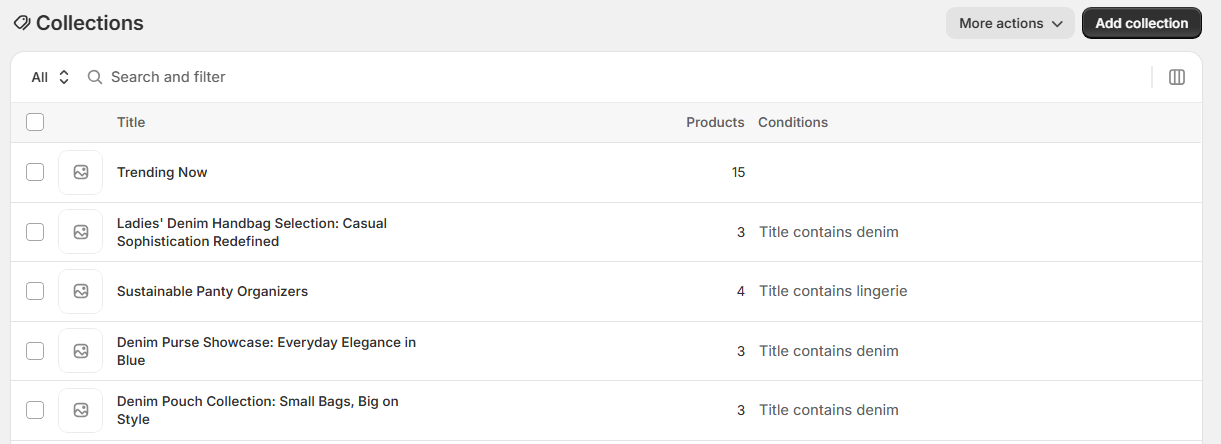
No. Shopify's collection model is flat. Every collection sits at the same level, with its own URL, its own settings, and no parent-child relationship to any other collection. There's no "make this a sub-collection of that" checkbox anywhere in the admin.
That's exactly why the top results for this search are a Shopify Community thread and a Reddit post instead of Shopify's own help docs. Official documentation can't own a page about a feature that doesn't exist. What follows are the four ways merchants actually build hierarchy-like structures on top of that flat system.
Method 1: Tags + automated collections
This is the most common workaround, and it's the one Shopify itself points people toward. You tag products, then build an automated (smart) collection that pulls in anything matching that tag.
- Add a shared tag to every product that belongs in the sub-category, for example
mens-shirts. - Go to Products > Collections > Create collection.
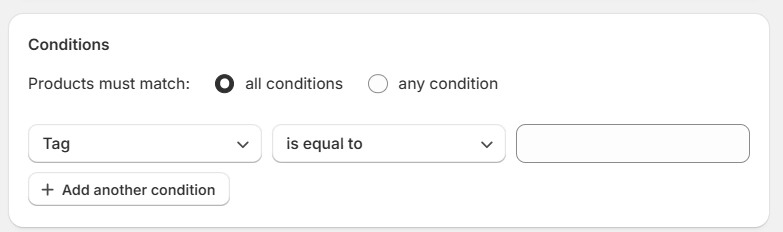
- Set the collection type to Automated.
- Add a condition: Tag is equal to
mens-shirts. - Save. The collection populates automatically and keeps updating as you tag new products.
The honest limitation: tags don't create a relationship between collections in Shopify's data model. mens-shirts and mens-clothing are two separate collections that happen to overlap in the products they contain. You have to build the parent-child feel entirely through navigation and naming, not through anything Shopify tracks structurally.
Method 2: Nested navigation menus
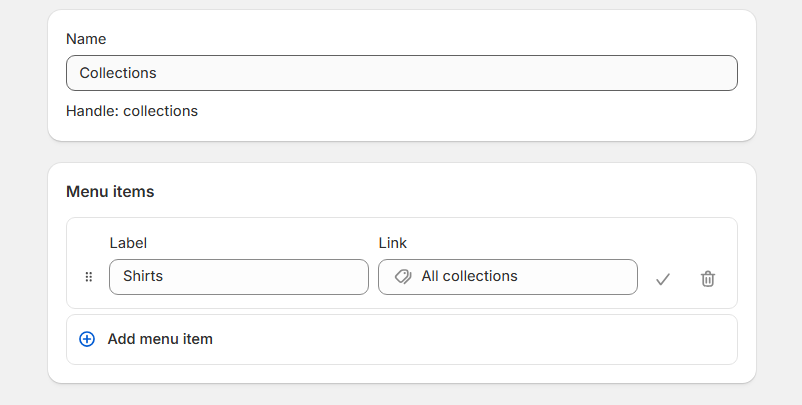
This is the method most stores actually ship, because it's the one customers see. In Online Store > Navigation, you can nest menu items under a parent item, so "Shirts" appears as a dropdown under "Men's Clothing" in your header.
- Go to Online Store > Navigation and open your main menu.
- Add a menu item pointing to the parent collection, for example Men's Clothing.
- Add a second menu item pointing to the child collection, for example Shirts.
- Drag the child item and nest it under the parent using the menu editor's indent handle.
The honest limitation: this only nests the menu link, not the collection itself. Shirts is still a completely independent collection page with its own URL, and Google indexes it exactly that way. A customer sees hierarchy in your dropdown; a crawler sees two unrelated collection pages with no structural connection between them.
Method 3: A manually curated "Collection list" section on the parent page
This is the no-code option. Instead of any backend relationship, you use Shopify's built-in Collection list section and manually hand-pick which collections appear as tiles on the parent collection's own page.
- Go to Online Store > Themes > Customize, and open your parent collection's page (for example, Men's Clothing).
- Click Add section, and look for Collection list.
- Add a block for each child collection (Shirts, Pants, Outerwear) and manually select it from the dropdown.
- Arrange the order and save.
On some themes, Collection list only shows up as an option for the homepage or a dedicated collections-list page, not for individual collection page templates. If you don't see it in the sidebar when editing your parent collection specifically, you may need to open Edit code and add the section to that collection's template file. That's a five-minute job for most themes, longer if yours is heavily customized.
The honest limitation: this is entirely manual and static. Add a fifth child collection next month, and it won't appear on the parent page until you go back into the customizer and add that block yourself. Shopify also caps most themes at 16 blocks per section, so this works cleanly for a handful of sub-categories but doesn't scale to dozens.
Method 4: Apps
Several Shopify apps add a visual hierarchy layer on top of collections, letting you group collections into categories and sub-categories in a sidebar the way a traditional e-commerce platform would. This is usually the fastest way to get the "real" nested feel customers expect, especially on stores with deep catalogs.
The honest limitation: an app-built hierarchy exists inside that app's interface, not inside Shopify's own data. If you ever switch apps or the developer discontinues it, the nesting disappears and you're back to a flat collection list. Read the app's own docs carefully on whether it changes your actual collection URLs or only reorders how they're presented.
| App | Price | Touches URLs? |
|---|---|---|
| Collection Tree: Discover | $5.99/mo | No, nested subcollections with simple parent-child mapping |
| Smart Collection Pro | $5/mo | No, breadcrumbs only |
| TreeNav | $7/mo | No, builds a nav tree from existing collections |
The SEO consequences nobody mentions
This is the part every competing guide skips, and it's the actual difference between a sub-collection structure that ranks and one that quietly cannibalizes itself.
URL structure. Shopify collection URLs are flat by design: /collections/shirts, not /collections/mens-clothing/shirts. There is no way to make a sub-collection's URL nest under its parent's URL. Search engines read your navigation as a hint about hierarchy, but the URL itself never confirms it. If your collection strategy is still relying on default handles and inconsistent naming, clean that up before you worry about nesting.
Duplicate content. A product that qualifies for both Men's Clothing and Shirts sits on two separate collection pages. If both pages use the same auto-generated title tag and meta description pattern, you end up with two pages competing for overlapping queries instead of one page ranking clearly.
Canonicals. Shopify sets each collection page's canonical to itself by default, not to a "parent" collection, which is correct behavior but means every sub-collection you create needs its own genuinely distinct on-page content. A sub-collection page with three sentences copy-pasted from its parent isn't going to rank for anything specific.
Breadcrumb schema. None of the four methods above actually tell Google there's a hierarchy, they just make it look like one to shoppers. BreadcrumbList JSON-LD is the one piece of code that states it outright: Shirts sits under Men's Clothing, even though the URL itself never confirms that.
For example:
{% comment %} File: snippets/schema-breadcrumb.liquid, included in your collection template {% endcomment %}
<script type="application/ld+json">
{
"@context": "https://schema.org",
"@type": "BreadcrumbList",
"itemListElement": [
{
"@type": "ListItem",
"position": 1,
"name": "Home",
"item": "{{ shop.url }}"
},
{
"@type": "ListItem",
"position": 2,
"name": {{ collection.title | json }}
}
]
}
</script>
Which method to use at 50, 500, and 5,000 products
At roughly 50 products, tags plus automated collections (Method 1) are enough on their own. Nest the menu (Method 2) so customers see the hierarchy, and skip everything else. You don't have enough sub-categories yet for overlap to become a real problem.
At around 500 products, tag overlap starts causing real mistakes, a product that qualifies for two sub-categories at once makes your "is equal to" conditions messier to maintain, and nav menus alone start feeling thin as a browsing aid. This is where adding links inside each parent collection's description (Method 3) earns its keep, it's still five minutes of manual work, but it gives customers a second way to cross-browse beyond the dropdown.
At 5,000 products, manual upkeep breaks down across the board. Editing nav menus and collection descriptions by hand every time you add a sub-category isn't sustainable at this volume, and this is usually the point where a dedicated app (Method 4) is worth the monthly cost, since it maintains the hierarchy for you instead of you maintaining it by hand. The bottleneck at this scale usually isn't the categorization method anymore, it's keeping every collection actually current: products go out of stock, new SKUs need slotting in, and nobody has time to check dozens of collection pages by hand every week. That's where RankCollections automated cleanup and new-collection suggestions start saving real hours instead of just organizing products.
Install RankCollections for free
Where RankCollections fits into this
RankCollections doesn't create nested hierarchy for you, no app changes Shopify's flat collection model at the database level. What it does is keep whichever structure you build with Methods 1 through 4 from decaying as your catalog grows. It watches your existing collections and removes products the moment they go out of stock, and it surfaces new sub-category opportunities by comparing your catalog against what competitors are already ranking for, so you're not guessing which sub-collection to build next. The free plan covers your first 5 collections if you want to try it on one product line before rolling it out further.
Create your first 5 collection for free
The bottom line
Shopify won't nest categories for you. Pick tags for a small catalog, manually curated collection list once you cross a few hundred SKUs, and treat navigation and apps as presentation layers on top of whichever data structure you choose. Then watch your URLs, your duplicate content, and your canonicals, because that's the part that actually determines whether any of this ranks.
If keeping those collections populated and current is the part eating your time, try using RankCollections.