Shopify Collection Image Sizes: The Correct Dimensions (2026)

Shopify Collection Image Sizes: The Correct Dimensions (2026)
Your Shopify collection image size should be 1024 x 1024 pixels, square, saved as JPEG or WebP under 200KB. Shopify technically allows up to 5000 x 5000 pixels and 20MB per file, but nothing about your theme wants you anywhere near that ceiling. Below is the exact table, why Shopify crops your images the way it does, and how the settings differ by theme, checked against Shopify's own documentation instead of a five-year-old forum thread.
Shopify Collection Image Size Guide
| Use case | Recommended size | Aspect ratio | Shopify's hard limit |
|---|---|---|---|
| Standard collection image | 1024 x 1024 | 1:1 | 5000 x 5000 px, 25MP |
| Portrait-style theme layout | 1024 x 1536 px | 2:3 | 5000 x 5000 px, 25MP |
| Square layout (some themes) | 2048 x 2048 px | 1:1 | 5000 x 5000 px, 25MP |
2048 x 2048 is the retina (2x) version, not a separate recommendation. If your theme renders collection tiles up to 512px wide on desktop, 1024 x 1024 already covers 2x density and looks sharp on high-DPI screens. Only go up to 2048 x 2048 if your theme renders tiles wider than 512px, otherwise you're uploading a bigger file for no visible gain. This is also why Shopify still wants a reasonably large source file even though it resizes automatically. Shopify's CDN generates every smaller crop your theme needs from that one source, using responsive srcset and the image_url filter. Upload something too small to start, and every resized version downstream inherits that same low resolution, there's nothing to upscale from.
File size: keep it under 200KB in practice. Shopify's actual cap is 20MB, but a collection page loading a dozen images at that size will crawl on mobile.
One mix-up causes a good share of "my image looks stretched" reports: the collection image (the small square tile in a grid) is not the same as the collection banner (the wide hero image at the top of an individual collection page). On Dawn, the banner defaults to roughly 1920 x 600 pixels, a wide landscape ratio, nothing like the 1:1 tile spec above. Uploading a square tile image into the banner slot, or the reverse, is what produces that stretched look, not a crop bug.
How Shopify Crops Collection Images (And Why Yours Looks Wrong)
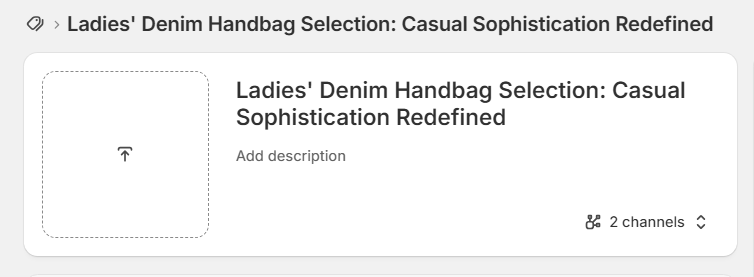
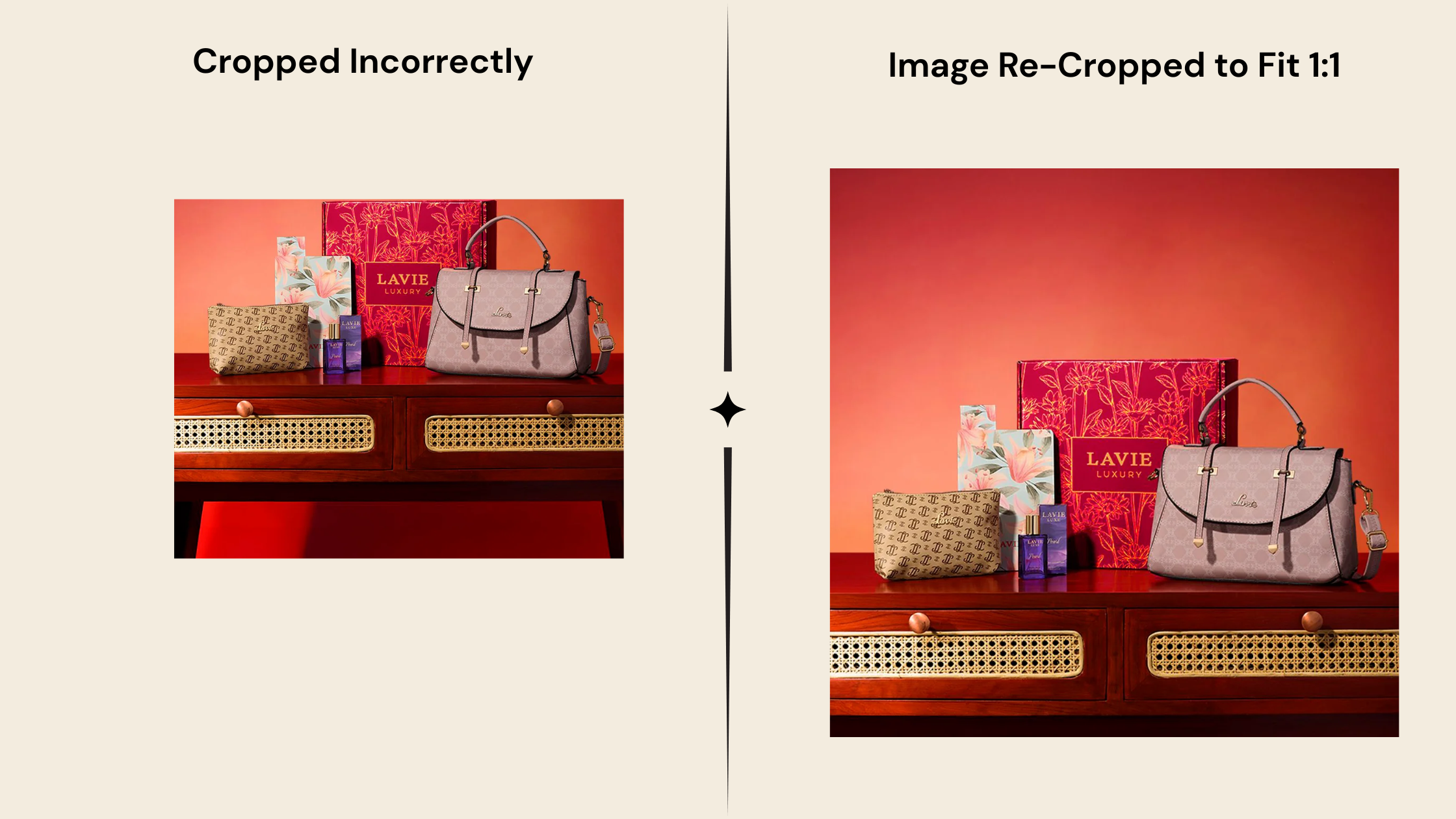
Shopify displays collection images side by side on category pages, which means it forces them into a matching aspect ratio whether your original file fits or not. If you upload a 4:3 photo into a theme set to square, Shopify's CDN crops it from the center, and centered crops rarely land where you want them to.
That's the honest explanation for the blurry or oddly-cropped collection thumbnails you've probably seen. It's not a bug. Shopify's own documentation confirms collection images need a consistent aspect ratio to display uniformly, and themes rely on the CDN to enforce it when your uploads don't match.
Aspect Ratios by Theme: What Changes Between Themes
Dawn, Shopify's default theme, gives you three settings for collection images: Square (1:1), Portrait (2:3), and Adapt to image. Square is the default, and it's what most stores should stick with unless there's a specific reason not to.
Fashion and apparel themes often switch to Portrait, since 2:3 reads closer to a look book photo than a product tile. If your theme uses Portrait, size your images at 1024 x 1536 rather than trying to force a square crop into it.
One detail that trips people up: your collection images also populate mega menu dropdowns in most Shopify 2.0 themes. Get the aspect ratio wrong and it shows up twice, once on the collection grid and once in your nav.
If you're also working on how the collection page converts browsers into buyers, grid density and card layout matter just as much as the image dimensions.
File Size and Format: WebP, Compression, and the Actual Limits
Shopify accepts PNG, JPEG, WebP, GIF, HEIC, TIFF, BMP, PSD, and SVG for product and collection images, and serves whichever format the visitor's browser supports best through its CDN, usually WebP. You don't need to manually convert files to WebP before uploading, Shopify handles that automatically.
What you should still do yourself:
- Compress before uploading rather than relying on Shopify to do it for you. Shopify's automatic processing is conservative, not aggressive.
- Use JPEG for photos, PNG only when you need transparency.
- Target under 200KB per image, even though the platform allows up to 20MB.
Note this is a different target than blog content images. If you're sizing images for a Shopify blog post instead of a collection page, the ideal dimensions and aspect ratio are different, don't reuse one spec for both.
Fixing Images That Already Look Bad
You don't need to touch code for a one-off fix. Canva handles it in a few steps:
- Open Canva and create a new design with a Custom size of 1024 x 1024 px, so you're cropping into the exact target dimensions from the start.
- Upload your existing product photo and drag it onto the canvas.
- Resize and reposition the image inside the square frame until the product is centered the way you actually want it, not wherever Shopify's automatic crop landed it.
- Use the Crop tool if the photo extends past the edges, and adjust the crop handles manually rather than accepting a default center crop.
- Download as PNG (for transparency) or JPG (for a smaller file size), then re-upload it to your Shopify collection.
One thing cropping can't fix: if the source image is low-resolution or blurry to begin with, tightening the crop just makes the blur more obvious. In that case, the fix is a better original, not a better crop.
If you don't have a clean product photo to work with at all, that's a different problem than cropping solves. Merchants building collection tiles from scratch, think icon-style graphics or text-based category banners, can design them in CutMagic's SVG Creator and export straight to PNG at 1024 x 1024, so the image is correctly sized before it ever touches Shopify.
FAQ
What size should a Shopify collection image be?
1024 x 1024 pixels, square, saved as JPEG or WebP and kept under 200KB. That covers standard theme layouts and 2x retina density on most screens.
What's the maximum image size Shopify allows?
5000 x 5000 pixels, or 25 megapixels, up to 20MB per file. That's Shopify's hard limit, not a recommendation.
Why does my Shopify collection image look cropped wrong?
Shopify forces collection images into your theme's set aspect ratio for uniform display. If your upload doesn't already match that ratio, the CDN center-crops it, which rarely lands where you'd choose manually.
What's the difference between a collection image and a collection banner?
The collection image is the small square tile shown in a grid. The collection banner is the wide hero image at the top of an individual collection page, roughly 1920 x 600 on Dawn. They use different dimensions and aren't interchangeable.
Does Shopify accept WebP images?
Yes, and Shopify serves WebP automatically through its CDN when a visitor's browser supports it, regardless of what format you originally uploaded.
Wrapping Up
Getting the pixels right fixes how your collections look, not how they perform. A category structure that's actually organized around what shoppers and AI search tools look for still needs its own work, image sizing is one input, not the whole job.
RankCollections handles that part. It looks at competitor collections and real search demand, then generates new SEO-optimized collections for your store automatically, so your categories match what people are searching for instead of just how your catalog happens to be organized.